1.1 Reporting for your own needs
1.2 Completing the report additional functions
1.2.1 Copying all content from
1.2.2 Copying all content of days to day/days
1.2.3 Copying a specific item to a day/days
1.2.4 Moving a specific item to a date
1.2.5 Adding an optional link to an item
1.2.6 Changing the order of reported events during the day
1.2.7 Deleting data from a report
1.2.8 Some basic words about dictionaries
1.4 Exporting a ready report for any time period of month/week/day
2.1 Creating a Multi-Person Group
2.2 What role (function) can be performed in a group?
2.3.1 Inviting a new user to the group
2.3.2 Accepting an invitation to a group
2.3.3 Changing a user's role in a group
2.4 Removing a user from a group
2.4.1 Leaving the group on your own
2.4.2 Blocking a user from a group
2.4.3 Removing a user from a group
2.5 Working on a report in a group
3. Report structure, i.e. column settings
3.1 Report columns – characteristics
3.2.1 Adding a non-dictionary column
3.2.2 Adding a dictionary-type column
3.3.1.1 Dictionary items additional fields
3.3.5 Removing a category from the dictionary
3.3.6 Editing categories in the dictionary
3.3.7 Importing categories to the dictionary
4.1 Labeling and commenting reports
9.1 Appendix 1 Report Acceptance
10.1.1 Integrations - Github - configuration
10.1.2 Integrations - Github - usage
10.2.1 Integrations - Gitlab - configuration
10.2.2 Integrations - Gitlab - usage
11 Category / Project time, cost, revenue and profit summaries based on hourly rates
11.1 Displaying Category / Project Summaries in Group View
11.2 Displaying Category / Project Summaries in Search and Export Results
11.3 Displaying Cost Summary for Category / Project Summaries
11.4 Setting the General Hourly Rate for a Group Member
11.5 Setting the hourly rate for a specific Category / Project for a group member
11.6 The hourly rate of a Category / Project (dictionary item)
11.7 Setting the hourly rate for a Category / Project
11.8 Project revenue and Project profit in summaries
11.9 Who sees what and who can set the rates - permissions summary
11.10 Category / Project hourly rates in dictionary export and import
12.1 What are the benefits of archiving a group?
12.2 Where can archived groups be found?
12.3 How to archive/unarchive a group?
12.4 What permissions are required to archive/unarchive a group?
12.5 Who can view an archived group?
13 Reporting by Scanning a QR Code
13.2 Where to set the QR code for a group?
13.3 What permissions should a user have to be able to report by scanning a QR code?
13.4 Geofencing - Scanning Areas
13.5 QR scanning configuration - summary?
14 Reporting by scanning an NFC code
14.2 Where to activate NFC code scanning for a group?
14.3 Where to set an NFC code for a group member?
14.4 What permissions should a user have to be able to report by scanning an NFC code?
14.5 What permissions should a user have on an NFC code scanning terminal?
14.6 Geofencing - scanning areas
14.7 How to configure NFC code scanning - Step-by-step summary
14.9 How to upload an NFC code to a card
15.1 What does deleting an account mean?
15.2 How to delete your account in the web application
15.3 How to delete your account in the mobile application
15.4 What happens after you confirm account deletion?
16.1 Where notifications are configured
16.3 Previous-day report reminders
16.3.1 Missing report for the previous day
16.3.2 Unfinished report for the previous day
16.3.3 What the reminder looks like
16.4 Disabling reminders for a member
 Video materials
If you want to use mojegodzinki.pl, regardless of whether you will do it only for your own needs or you have received an invitation to join the group, you must create an account.
You need an email address for this.
To create an account:
Click create an account
Enter the email address you want to use to create a new account

Click the link that will be sent to the address you provided and follow the instructions (if the email did not arrive, check your spam folder or click the resend link button)
Fill in the remaining details
Click create a new account
Alternatively, you can create an account using the Google option.
In this chapter you will learn:
- how to report working time for your own needs;
- how to quickly copy data from another day, how to edit, delete, and change the order;
- how to use dictionaries to easily present data;
- how to view data and how to group it;
- how to export a finished report to a spreadsheet.
After logging in to mojegodzinki.pl, you will have a tool ready to work.
The basic view in mojegodzinki.pl is the group view. After logging in, your default group will be created, and you will be the owner and reporting user. No setup is required – you can start reporting immediately.
Before you start reporting, it is worth knowing that
you can report in several groups independently
You can customize the report to your needs by modifying it. For example, you can add/remove columns and change their order (you can read about how to do this in the section on Report Structure, i.e., Column Settings ). Note: It's recommended to change the column settings before starting the report, for the simple reason that if, for example, you delete a column that contains any reported items, you will lose them.
A group can act as the entity you report to. If you report to multiple entities and want to easily manage your reports, you can create a separate group for each entity and participate in it.
If your team decides to use mojegodzinki.pl, you can all report in the app. This means each participant will have at least one private group. You can also create another group where everyone can report. We'll discuss this later.
the group owner has full rights within it and these rights cannot be limited or taken away from him in any way
A group member's permissions are determined by the owner or someone they designate. In the group you were invited to, you may only be a member and may not have all the features because such permissions have not been assigned to you. You can read more about this in the permissions section.
Now let's start with simple reporting only for your own needs, because that's enough for you to use mojegodzinki.pl on your own.
If you use the functionality of mojegodzinki.pl only for your own needs, you will be able to:
plan your work time
write down what you did if you work remotely and your boss requires you to provide periodic reports on completed tasks (daily/weekly/monthly)
prepare a ready-made report, e.g. as an attachment to a bill or invoice, if you settle accounts with your client in this way.
Mojegodzinki.pl gives you a lot of flexibility in adding and removing columns, so you can create a complete report just the way you need it. However, if you need to present the report in a spreadsheet, you can easily export it.
Once you've logged in, you'll be in your group view. This is your private group where you can customize your report however you like.

Once you have selected the appropriate view, click on the day you wish to report on

Fill out the report fields with your data. The row will be saved once all required fields are completed.
Default report columns (required columns are marked in red in the instructions below)
Description (1) – completed task text field (required field).
From to (2) – optional fields if you want to record the hours you worked on a given task. This is an optional field, but it will allow you to count these hours and automatically show the work time in the column.
Working time (3) – enter this mandatory field manually or it will be completed automatically if you fill in the fields from to.
Category (4) – assign a category that will allow you to easily group data (by default, it is a dictionary column, you can read about how to create dictionaries in the instructions for creating dictionaries ).

By placing your mouse cursor on a given day, you will see a summary of the hours entered for that day.

If your activities are repetitive, you can transfer data using the copy from day option (1), and then select the days to which you want to copy all activities from that day.
You can change the number of hours, the description, delete the entire row or the content of the entire day if, for example, you made a mistake and copied data from the wrong day.
Select the day from which you want to copy data, click copy from the day, select the days to which you want to copy data
If your activities are repetitive, you can quickly move all activities from a given day to another day or range of days. To do this, use the copy to option.

Then select the day/days to which you want to copy the data from the day you are currently on.
By default, if a given range includes non-working days (weekends, holidays), the system will skip these days when copying data. However, if you want to copy data to non-working days as well, select "Copy also to weekends and holidays."

It is possible to copy a specific item from a given day to another day or range of days.
To do this, open the menu for a specific item and use the Copy item to option.

Then select the day/days to which you want to copy this specific item.
By default, if a given range includes non-working days (weekends, holidays), the system will skip these days when copying data. However, if you want to copy data to non-working days as well, select "Copy also to weekends and holidays."

It is possible to move a specific item from a given day to another day (the item will be removed from the day it was on and will be placed on another, specified day).
To do this, open the menu for a specific item and use the Move item to option.

Then select the day to which you want to move this specific item.

You can add a website address to a report item. The added address will be displayed in the table and the Visit website option will appear in the item menu, which will open the page with that address.
To add a link, open the menu for a specific item and use the Additional settings option.

A screen will appear with additional position settings available. Fill in the URL field and save.

For items with a filled-in URL address, it will be visible in the table and in the item menu, the Visit page option will appear, which will open the page with this address

In the daily report, you can freely change the order of the reported hours by dragging the individual rows with the cursor (2) or you can select selected rows and delete them (3)

You can remove data from a report:
rows - using a cross (2)
all items from a given report - delete button (3)
This is enough to fill out the report. If you want to fill out the report data even faster, you can use a dictionary column. With a dictionary column, you select the data to enter in that column from a defined dictionary. This can be useful for filtering data and calculating subtotals based on them, which is done automatically in mojegodzinki.pl. Place the cursor on a given day and a summary of the hours for the dictionary entries will be displayed immediately. For subtotals to work, the dictionary column must be single-select, and the " Column values will be grouped and totaled" option must be selected, which is the default setting.

In the default view of mojegodzinki.pl, the category column is a dictionary-type column, so only defined values, so-called dictionary values, can be entered in this column.
Filling the category column
Select an entry from the dictionary.
If an item isn't in the dictionary and you need it, add it. To do so,
Stand in the field, column being the selection column, click add
Enter a new category into the dictionary and click create category
You can read more about how to create dictionaries, how to add/edit and remove an item from the dictionary in the Creating Dictionaries chapter.
( The option to add a new/edit/delete a dictionary entry may not be available to you if you work in someone else's group and the owner has not granted you this permission, then you must ask them to unlock this functionality or to expand the dictionary with this entry. Remember that the single-choice category field is displayed in the report summaries and can be a very useful tool in data analysis )
However, if you do not care about filtering data but about quickly filling out the report with ready-made descriptions, you can select this column to allow multi-selection (you can read how to do this in the Creating dictionaries chapter ).
Here's what a daily summary looks like, broken down into individual dictionary categories in the subtotals. ( Just place your cursor over the day .)

These summaries are created automatically and are visible from the first reported hour and change with each change in the report.
You can view reporting data in weekly (1), monthly (2) or calendar view (3)

The default view is weekly. After logging in, the current week is displayed. To select a different week, move the slider left (1) or right (2) or select it from the timer (3).

In addition to the full reports, to quickly see how much has been reported, how much has been completed, and how much of this time is overtime, position the cursor
for the day – for a given day

Weekly totals in weekly view

Monthly total in monthly view

In the Calendar view, you'll quickly see which days were reported. This is useful, for example, to check if you've reported all the days you should have, or to quickly review if you have any concerns before generating the final report.

In any view (weekly, monthly) click search


Select the period you are interested in, e.g. a month
Click search - You will see a report of all the hours you have reported including a summary

Click export
The finished report will be saved in an Excel file, which you can save as a PDF and send as an invoice attachment.
This option isn't the only one. From this level, you can also limit your activity for a given month to a specific task and quickly see how many hours you spent on that activity (each filter provides an immediate summary, so you don't have to create additional display conditions, as you would in an Excel spreadsheet). Mojegodzinki.pl does this for you in real time.
In the next chapter you will see
how easily you can add another group that you will own, so you will have full functionality, e.g. you will be able to report work time for another entity,
how to function in someone else's group without being its owner, but only a reporting person, and how your rights in such a group may be limited
you will create your own multi-person group in which you will manage the permissions of its individual participants
You can read about groups and their settings later in this manual. Here, I'll just mention that groups are completely independent of each other. Simply put, groups function independently, and any action in one group has no impact on the other group's appearance, settings, or entered hours and summaries.
It is also important that even if your permissions are limited in a group to which you are invited, you will have access to full functionality in every group you create.
It's worth reading the section on group reporting, even if you don't need this functionality right now. It may be useful in the future.
You already know how to report; it was discussed in the Reporting chapter . In this chapter, you'll learn about how multi-person groups work at mojegodzinki.pl.
You can use this work mode to prepare a summary report of hours for the client, in which you will present the details of the work performed for them in working hours.
Perhaps your organization conducts research and development (R&D) work and is claiming tax relief or obtaining a grant? This tool will also allow you to prepare a report documenting expenses incurred on a given project.
You can also use this tool to report your team's working time, e.g. when working remotely.
In this chapter you will learn:
- how to create a new group and add people – participants – to it;
- what role, in addition to or instead of reporting, can be played in the group;
- how to accept an invitation to a group;
- how to change user roles in a group;
- how to leave a group;
- how to block the ability to report a user in a group;
- how to remove a user from a group along with all report data;
- how to view reports of people in a group, how to export data.
To create a new group
1. Click Create Group (1)
2. Give it a name (2)
3. Click Add Group (3)

Before adding users to the group, a few words about the group itself.
Each newly created group has default settings that you can use or edit to suit your needs.
The report has a certain column layout, which you can read about in the chapter on reporting the working day , and which you can change, which you can read about in the chapter on Report structure, i.e. column settings.
The group owner is the reporting person by default.
If you don't want to be a reporter but just manage your group
Go to settings

-> My permissions
Uncheck the Reporting checkbox


The group has defined standard permissions that you can assign to people added to your group, as well as modify or build them your own. I'll briefly describe the standard permissions here, and you can read about the functionalities of each role in the "Permissions" section.
The following roles are standard at mojegodzinki.pl:
 Reporter
– allows reporting to the group. This
role is limited
to viewing their own data only. The Reporter has no influence on group settings, has no
influence on
other users, and cannot view their data; they cannot see other group members and only
see their own
data;
Reporter
– allows reporting to the group. This
role is limited
to viewing their own data only. The Reporter has no influence on group settings, has no
influence on
other users, and cannot view their data; they cannot see other group members and only
see their own
data;
 Viewer
– allows access to the data of other
reporting group
participants, but only for viewing purposes – it is not possible to edit this data;
Viewer
– allows access to the data of other
reporting group
participants, but only for viewing purposes – it is not possible to edit this data;
 Admin
– allows you to edit other people's
reports and also
allows you to manage the entire group.
Admin
– allows you to edit other people's
reports and also
allows you to manage the entire group.
The standard version of the application does not include a Manager role, but you can easily create one yourself. You decide which roles and what permissions should be granted within them; for example:
 Manager
– this role may allow viewing the data of
other users
of this group and also editing them; this role may also authorize inviting new members
to the group or
suspending existing participants;
Manager
– this role may allow viewing the data of
other users
of this group and also editing them; this role may also authorize inviting new members
to the group or
suspending existing participants;
When you add a participant to a group, the mojegodzinki.pl system will send an email invitation to that person's email address. If that person doesn't have a mojegodzinki.pl account, they'll first need to create a new account. For instructions on how to do this, see the section on creating a new account .
A person invited to a group will have an invitation button visible after logging in to their account. Clicking the invitation button will display a list of groups to which the participant has been invited.
At this point, the user can decide whether to accept or reject the invitation.
Declining will cancel the invitation and it will no longer be displayed.
Accepting the invitation will make the group visible on the invited person's account. The scope of visible data and group editing options will depend on the permissions the new participant has been granted.
Click Add Participant

Enter the participant's email address (the one used to create the account at mojegodzinki.pl) (1)
Specify his role (2) you can assign one or more (in case of granting more permissions, the permissions are cumulative - for example, by selecting Reporter and Viewer at the same time , the participant will be able to report and change his reports, but will also be able to see other people's reports without the possibility of editing them)
Click Add participant (By default, the person who is invited to the group is the reporting person)
If you have created a new role (as I write about in the chapter Building a role ), it will also appear in the list above and it will be possible to select it, but only within the group in which it was created.


Until a person confirms their invitation to the group, their report data will be grayed out. Notice that icons next to the person indicate their role(s) in the group. To quickly see the role of a given participant, simply hover over their name and see a preview in the tooltip. You can also access the group member's settings to see their permissions (see changing a user's role in a group ).
The person who was invited already has an account at mojegodzinki.pl (if not and you don't know how to do it, read the section on creating a new account )
Log in to your account
Click on invitations

If you accept the invitation, please accept

After accepting the invitation, the user, in addition to their own groups, sees the group they were invited to. These groups are completely independent of each other and may have completely different column layouts, different reporting data, and different permissions. They still have full permissions in their own group, but in the group they were invited to, these permissions are or may be limited.
Click on
the next to the user whose role you
want to change
->
Participant Settings

Select the role(s) you want to add or remove (if you have previously created a role yourself - as described in the Adding a role section - it will also be visible on the list and can be added)

If a user no longer reports to a given group, they can leave it. Previously reported hours will remain. However, they will no longer be able to add or edit work time in that group.
Leaving the group:
Click on the icon in your user section
Click leave group
Confirm your wish to leave the group after reading the message
If you want to remove a user's ability to report to a group, for example, because they have already completed work on a project, but you don't want to delete the time they previously reported, you can block the user.
Select the user you want to remove from the group
Click on
the next to the user you want to
disconnect
Click to disable participant
Confirm message


Note: If your user has left the group or been blocked from reporting, they can be reinstated. To do this, invite them back to the group (must use the same email address). This option will not be available if you permanently remove the user from the group.
If you want to permanently remove a user from a group, including the hours they have reported – that is, remove the user completely as if they had never been in that group.
Select the user you want to remove from the group
Click on
the next to the user you want to
disconnect
Click on participant settings

Click on
the left corner

Click Remove Participant

Confirm message

Note: After this operation, it will not be possible to restore the user to the group.
After reporting, you can quickly see how many hours were reported for each category, both weekly and daily; for the entire group and for a specific participant.
This data can also be searched, filtered, and exported. For example, to export data reported for client A
Click search

Export data
Select period (1)
Press search (4)
Export to Excel (5) Optionally, before exporting, you can also search by description (2) filter by dictionary entry (3)

After limiting it to client A, you will see a ready report that you can export to a spreadsheet and use it to prepare a summary for invoice purposes.

In this chapter you will learn
- what kind of columns you can create in the application
- how you can add/remove columns
- what is a dictionary column and how can you use it to present data
- how to build a category dictionary - how to add elements to it - how to import a ready dictionary
Description – text type of the column, you will enter a description of the given activity here; it is a text field (number of allowed characters: 500). The description column is required, you cannot create a report without at least one description column
Text – same type as description but this column is not a required column in case you need more text columns
Selection field – a column that allows you to choose from a set of options, also known as dictionaries. To use a selection field, you must first create a dictionary, fill it out, or configure it so that it can be filled in as you enter data. You can read about creating dictionaries in Category Dictionaries .
Basic time (hours minutes) the amount of time spent on a given report item is also a mandatory column, i.e. there must be at least one such column to create a report.
Time (hour minute) as above but optional.
From/To
(HH:MM) – specifying a point in time from
when to when
something happened, these fields are not mandatory but completing them will affect the time
counting in
the basic time position.
However, you can only have one column from to and the amount of time will be counted based
on them only in
the basic time.
Yes/No – checkbox column is used for selecting (logical column)
Number – a column where we enter a number object. The precision of the number is up to two decimal places.
Date – calendar date in yyyy-mm-dd format
Click

Select Group Settings
Report Columns Section
From this level you can:
Add columns (1)
Change their name by clicking on the selected one and you will see the option to edit it(2)
Select whether a given column is required (3)
Change its settings (4)
Delete (5)
Click
Select Group Settings
Go to the Report Columns section (scroll the slider )
Click add column
Name it in the description field
Decide on the type in the type field
Check if the column is required
You can use the dictionary field in this column. If you've already created one, you can add it. If not, go here ( Category Dictionaries )
Follow the steps for adding another column in the column type select checkbox
Then go to settings
 (4)
(4)
In the Selection Mode field, select
Single Select to use exactly one item in this column to precisely filter data.
If you want the report view to show summaries for dictionary categories, select "Column values will be grouped and summed"

Multi-select if this column is not to be used for filtering but, for example, to fill out the report faster with repetitive activities
With the multi-select option, you won't have a summary for each activity. For example, if you enter that you spent 3 hours on two activities, the system won't know how many of those 3 hours to allocate to each.
You can create more than one dictionary-type column. For example, two to filter hours by project and project task, and one to populate with standard, repetitive operations that detail the reported activities. Of course, this is just a suggestion; you can also refine the report using a standard text-type column by filling in the field manually.
for example, you can select in the first column the telephone duty for client A and it will be a single-choice field summed up, and in the next column, which will have multiple choices, you can quickly select, for example, which departments of client A you talked to: Accounting, Controlling, Purchasing, Trade, because it is not important which one and how many, but simply which one
Note: If you delete a column, the data in the report will no longer be visible. Therefore, it's best to delete a column during the report configuration stage before entering any data.
Deleting a column (5)
Click
Select Group Settings
Go to the Report Columns section (scroll the slider )
Click

Confirm column deletion
Note: For columns that have already been created and saved, you can change the name (but not the type). If a column doesn't suit you, you can remove it from your view and create your own.
From this level you can enter other settings for the selected column, e.g. you can change the selection column from single selection to multi-selection, but please note that I recommend making these changes before starting reporting to avoid data loss or incorrect presentation.
Click
Select Group Settings
Go to the Report Columns section (scroll the slider )
Click
Edit
Click save
Note: You cannot change the column type, i.e. you cannot change a text column to a time column from to.
To create a dictionary
Click
Select Category Dictionary


Enter the name of the dictionary (in the comment you can enter a description, e.g. what the dictionary is used for)
Click Add Category Dictionary
Click on the selected dictionary

In this window you can add a dictionary category (1), remove it (2), import it from Excel (3) and change the order in the view (4)
By default, each dictionary entry allows you to enter two values.
You can also define additional fields that can be added to each dictionary entry.
For example, I want to create a Partners dictionary containing company data. I'm creating additional fields Tax Identification Number and Address to be able to add this information to each dictionary entry.
Additional fields for dictionary entries are created in the dictionary creation or editing window in the Additional Fields
section.
For each additional field, you can select the following option:
When fields are defined, when adding/editing a dictionary entry You will be able to fill them in.

And, if the display option is selected, they will be visible in the selection list.

The contents of Additional Fields will also be searched when searching for a dictionary entry in the selection field.
Click
Select Category Dictionary
Click on the dictionary you want to delete
Click
in the lower left corner
Click delete dictionary
Click
Select Category Dictionary
Click on the dictionary you want to edit – change its name
Make changes
Click save
Click
Select Category Dictionary
Click on the dictionary you want to add a category to
Add a category (you can add a description to this category in the comment, e.g. for the on-call category you can add the description on-call after 4 p.m.)
Click Add Category
The category has been added to the dictionary
If you want to distinguish between paid and unpaid hours in the report, e.g., unpaid leave, deselect the Billable option . Deselecting this option will result in the data you report in this category still being included in the general totals, but will also include Billable and Non-Billable totals , which include separate totals for billable and non-billable dictionary entries.

For every dictionary item you can also set an Hour rate - the rate the client is charged for an hour of work on this category / project. This field is visible and can be filled in only by people with the appropriate permissions, and project revenue and profit in the summaries are calculated from it. We describe this in the The hourly rate of a Category / Project (dictionary item) chapter.
Click
Select Category Dictionary
Click on the dictionary from which you want to remove the category
Place your cursor on the category you want to delete
Click
on the right side
Confirm the deletion by clicking YES or cancel by clicking NO
The category will be removed from the dictionary.
Click
Select Category Dictionary
Click on the dictionary in which you want to edit the category
Place your cursor on the category you want to edit and click on it.
Make changes
Save
If you have a dictionary whose categories you'd like to transfer to mojegodzinki.pl, you can do so by importing them from Excel. If you've already created multiple dictionary categories, the imported entries will be added to the existing ones. If categories with this name already exist, the system will issue a warning and prevent them from being added.

Prepare an Excel dictionary according to the template below. Fill in cell A1 as the Name, cell B1 as the Comment (or leave the first row blank), and then fill in rows 2 and up with the dictionary data you want to import. The comment will serve as a description of the dictionary entry.

You can download the dictionary import file template using the following option:

To import a ready-made dictionary
Click
Select Category Dictionary
In the window, click Import from Excel
Select the dictionary file you want to import and double-click it. The data will be imported.
Besides the name, the comment and the additional fields, the dictionary import / export file may also contain an Hourly rate column for the dictionary item. This column appears and is read only for people with the appropriate permissions - we write about this in Category / Project hourly rates in dictionary export and import
In this chapter you will learn
- how to mark completed reports or those requiring completion with labels or comments
- how to create labels
In mojegodzinki.pl, you can add comments and tags to reported work time. This functionality allows you to mark items that still require your attention, or you can mark days that have already been fully reported or that require additional information. This saves you from having to review the entire report or remember which day needs to be changed.
Labels and comments can also be used within a group, for example, to exchange information. A person reviewing reports can mark them with a label or comment for the same purpose. They can also flag a given report to request additional data or point out discrepancies.
Both comments and labels are managed by permissions, so you can use them in a variety of ways depending on your needs. This ability may be limited to you as the person viewing other people's reports. This may work differently in each group.
For information on what permissions to assign to a role to manage access to labels and comments, please read Functions available within mojegodzinki.pl, points 2.1-2.7.
To add a label or comment, simply place the cursor on the day and select
 for the label
 for comment


Go to group settings
Click on Labels

Click CREATE LABEL

Enter the name (1), select the text color (2) and background color (3), optionally you can add a comment to the label, e.g. in what cases you will add it or what it is for (4)
Click CREATE LABEL

In this chapter you will learn
- how to manage permissions in a group
- what are the standard ready-made permission roles that you can use
- how to create permissions for your own needs
- what kind of functionalities can you assign to people in roles within a group
Each group has its own definable set of permissions. Standard roles are initially set.
In addition to the roles listed below, there
is a group
owner
 who always has full permissions.
| Role Name/Function Name |
Reporting
|
Viewer
|
Admin
|
|---|---|---|---|
| Participant | X | X | |
| For viewing | X | X | |
| For viewing plus | |||
| Editing reports of other group participants | X | ||
| Invite to group | X | ||
| Activate participant | X | ||
| Deactivation | X | ||
| Participant management | X | ||
| Removing participants | |||
| Acceptance – Ready for acceptance | |||
| Acceptance of reports with a status of "ready for approval" | |||
| Acceptance – Acceptance of reports | |||
| Acceptance – Withdrawal of acceptance of the report | |||
| Acceptance – Editing accepted reports | |||
| Adding labels to reports | X | X | |
| Removing report labels | X | X | |
| Edit comment | X | X | |
| Deleting comments | X | X | |
| Creating labels | X | ||
| Label management | X | ||
| Removing labels | X | ||
| Creating access roles | X | ||
| Editing access roles | X | ||
| Removing access roles | X | ||
| Group management | X | ||
| Adding dictionaries | X | ||
| Editing dictionaries | X | ||
| Deleting dictionaries | X | ||
| Adding entries to dictionaries | X | X | |
| Editing dictionary entries | X | ||
| Deleting dictionary entries | X |
Within a group, each participant can fulfill a specific role, and therefore have more or less permissions. You can customize these to suit your needs. Furthermore, permission settings within a given group don't transfer to other groups, allowing you to perform a different role within each group. For example, you can report your work time only in group A, but only manage the time of users in group B. To make your work easier, I've provided you with standard group permissions (so-called starter permissions). You can use them, and if they're not sufficient, you can create your own.
Granting permissions involves assigning a specific group of functions to a person. That is, you create a role from selected available functionalities, which you then assign to selected users.
If this seems too complicated or unnecessary, you can use the standard roles that a newly created group is equipped with.
Now, let's talk about features you can add/remove to starter roles or use to create your own role. We'll cover how to create or edit a role in Building a Role.
Functions related to QR code scanning are described in the Reporting by QR Code Scanning section.
Functions related to NFC card scanning are described in the Reporting by NFC Code Scanning section.
1.1 Participant – can report his/her data in the group
1.2 For viewing – preview of reports of other group members without editing
1.3 View Plus – View reports from other group members without editing them. This can be combined with actions for labels and comments, allowing you to add, change, or remove them in other group members' reports.
1.4 Editing reports of other group participants – View reports of other group participants with the option of editing them
1.5 Invite to group – ability to add new participants to the group
1.6 Activate participant – Ability to activate a user who has been deactivated
1.7 Deactivation – Possibility to deactivate a group member
1.8 Participant management – Ability to change individual group participant settings
1.9 Removing Participants – Ability to remove a participant from a group along with that participant's data in that group. This operation is irreversible, so double validation is required.
1.10 Manage members hour rates – Can change member hour rates settings in group
1.11 Display Category / Project Summary Section – Displays for group Categories / Projects summaries
1.12 Display costs in Categories / Projects summaries section and search results – Displays for group Categories / Projects summaries and search results costs calculated from members hour rates.
1.13 Manage project hour rates – Can set and edit hour rates on Categories / Projects dictionary items. This permission also allows viewing those rates.
1.14 Display project revenue in Categories / Projects summaries section and search results – Displays project hour rates and project revenue calculated from them in Categories / Projects summaries, search results and exports.
1.15 Display project profit in Categories / Projects summaries section and search results – Displays project profit (project revenue minus member cost) in Categories / Projects summaries, search results and exports. Requires costs and project revenue permissions.
More about what functions 1.10-1.15 mean exactly and how to combine them can be found in the Category / Project time, cost, revenue and profit summaries based on hourly rates chapter.
2.1 Adding labels to reports – ability to assign labels to days
2.2 Removing report labels – ability to remove label from days
2.3 Edit comment – ability to write comments for the day
2.4 Deleting comments – the ability to delete comments from the day
2.5 Creating labels – the ability to create new labels
2.6 Label management – ability to change existing labels
2.7 Removing labels – the ability to remove labels
3.1 Creating access roles – the ability to create new access roles
3.2 Editing access roles – ability to edit existing access roles
3.3 Deleting access roles – ability to delete existing access roles
4.1 Group management – ability to edit group settings
4.2 Archive group - Can archive group along with all its data.
4.3 Unarchive group - Can unarchive group along with all its data.
5.1 Adding dictionaries – the ability to create new category dictionaries
5.2 Editing dictionaries – ability to change category dictionaries
5.3 Deleting dictionaries – the ability to delete dictionaries along with their entries
5.4 Adding entries to dictionaries – the ability to add new entries to dictionaries
5.5 Editing dictionary entries – ability to edit dictionary entries
5.6 Deleting dictionary entries – ability to delete individual dictionary entries
but they can be shaped differently independently in each group
6.1 Approval – Ready for Approval: Marking a report as ready for approval removes the report from editability, and notifies the group members with approval permissions that the report is ready for approval. If someone marks a report as ready, they can cancel the status and continue editing it until approval is granted.
6.2 Acceptance of reports with the status ready for acceptance – a function for the manager that allows us to accept reports with the status ready for acceptance with this permission
6.3 Acceptance – Acceptance of reports means accepting all reports even if they have not been marked as ready for acceptance
6.4 Acceptance – withdrawing the acceptance of the report – withdrawing the acceptance of the report, the accepted report is not editable, this option allows you to restore the editing status of the report
6.5 Acceptance – Editing accepted reports , a very strong permission, but maybe your organization needs it or you can treat this permission as an emergency
By default, the group owner is the reporting
person. If
you do not want to be a reporting person and only want to manage your group, you should
enter

My permissions
And I uncheck the box next to Reporting
To edit a role, click
and then select
Access Roles

Click on the selected role

Then, to add/remove functionality to this role, check/uncheck the box next to it. Checked boxes will add/remove the specified functionality to all users to whom you assign this role.
Note: Role changes will be saved only
within that group.
Each group has its own default permissions, meaning that anyone with, for example,
 the Manager role will have the same
permissions within
one group but may have completely different permissions in another group.
the Manager role will have the same
permissions within
one group but may have completely different permissions in another group.
To add a role
Click
and then select
Access Roles
Click add role

Fill in the Name field (1)
Assign appropriate permissions (2)
Click add access role (3)
Note: a role constructed in this way will only be available in a given group.

You can read about how to assign a role to a user in the instructions on Changing the role of a user in a group
To change your password
Click on the user icon (top right corner of the account details)

Click Change Password


Enter old password (1)
Enter new password twice (2)
Press change (3)
The password has been changed
This applies to logging in via standard login and password, but does not apply to logging in via a Google account.

Click I forgot my password

Enter the login for the account created at mojegodzinki.pl
Click Next
Open the received email and click on the link

5. In the window shown in the screenshot above, enter the new password and repeat it.
6. Click create new password .


From now on, log in with your new password.
What is this?
Two-factor authentication (2FA), also known as two-factor authentication, is an account security method that requires two different factors to verify your identity. The first step is entering your password, and the second step is confirming your identity using a code sent to your email address (user login).
It is enabled by default
To turn off/on
Go to your account settings


Uncheck the checkbox to disable two-factor authentication or check it to enable it again.
Before we move on to the actual acceptance of the report, a few words about the default functionality and its editing.
Report approval is a very useful tool in mojegodzinki.pl, but it's not applicable everywhere. If you only need the app to report work time for documentation purposes, it can only complicate the process. Therefore, it's an add-on and not enabled by default. Read on and decide for yourself if it's appropriate for your needs.
You can set this functionality, as well as the related permissions in the application, in one place. Read the section on permissions to learn how easy it is. If you want to manage reports in your group by approving them, below I'll show you several ways to use it and what you need to activate to use it. In this chapter, I'll use the manager role. It's not available by default, but you can easily create one.
By default, none of these options are selected.
| Role Name/Function Name |
Reporting
|
Viewer
|
|
Admin
|
|---|---|---|---|---|
| Acceptance – Ready for acceptance | ||||
| Acceptance of reports with a status of "ready for approval" | ||||
| Acceptance – Acceptance of reports | ||||
| Acceptance – Withdrawal of acceptance of the report | ||||
| Acceptance – Editing accepted reports |
1. Option
After completing reporting for a given period, e.g. a week or a month, the reporting party sets the status of his report as ready for approval.
The manager automatically receives an email notification. They can accept or reject reports set as ready for approval.
The reporting party cannot make changes to an accepted report.
Setting acceptance in this option:
| Role Name/Function Name |
Reporting
|
Viewer
|
|
Admin
|
|---|---|---|---|---|
| Acceptance – Ready for acceptance | X | |||
| Acceptance of reports with a status of "ready for approval" | X | |||
| Acceptance – Acceptance of reports | ||||
| Acceptance – Withdrawal of acceptance of the report | ||||
| Acceptance – Editing accepted reports |
What does it look like?
Reporting
Once the reporting for a given month is complete, set the report as ready for approval by clicking ready for approval.


If you want to check your report before accepting it, you can use the search/export option.


You can view the report by clicking Search
Export to Excel by clicking Export
Set the status by clicking ready for approval

Days with the status ready for approval are marked in a different color and the summary also shows how many hours are in the status ready for approval.
You can also view your acceptance history.

Until the report is accepted at the reporting level, you can undo the status by going to the menu (1) and clicking cancel ready for acceptance.


I select the day and click cancel status ready for approval for

In the weekly view, the day for which you canceled readiness for acceptance has become editable, the remaining days are still locked.
The person accepting
In the view of the person accepting the report, the status of which is set to accept is highlighted in color.


You can select all participants (1) but note that with this option only reports for participants who have marked the report as ready for acceptance will be accepted
You can select a specific person (2)
You can choose the period you want to approve. For example, if you have any doubts about a particular day, you can choose not to approve it, but you can approve the non-negotiable dates to block the reporting person from editing them. (3)


In the group, after placing the cursor on the day or summary, you will see how many hours have been accepted

The exported report will include an Acceptance Status column, so you can also analyze this data in a spreadsheet, e.g. if you want to forward the report to a person who does not use mojegodzinki.pl.
 You can also export a group view with visible
statuses.
You can also export a group view with visible
statuses.


As you can see, even though all participants in the group were selected, acceptance was only made for one person because only he or she had the status set to ready for acceptance.
So you can accept reports for the entire group or, if necessary, accept them for a specific person. By accessing a specific person's report

You can view it (1), accept it (2), or reject it (3). Your acceptance or rejection will appear in your acceptance history.
Rejection of the report
We select the day and click reject

In the view, we can select the range of days for which we want to reject the reports, we can add a comment and click reject, the status is ready for acceptance

The system will ask for confirmation, click yes if you really want to reject

We can check in history

The person whose report was rejected receives an email notification that this status has been rejected.
The reporting person can make changes to a rejected report and, after changing it, reset the status to "Ready for Approval." If the reporting period is set to "Acceptance" again, the system will accept the previously rejected days and ignore holidays unless they report hours.
| Role Name/Function Name |
Reporting
|
Viewer
|
Manager |
Admin
|
|---|---|---|---|---|
| Acceptance – Ready for acceptance | ||||
| Acceptance of reports with a status of "ready for approval" | ||||
| Acceptance – Acceptance of reports | X | |||
| Acceptance – Withdrawal of acceptance of the report | ||||
| Acceptance – Editing accepted reports |
With this setting, the reporting person does not set the status to ready for approval and the manager approves the report, e.g. on the agreed day. Once the report is accepted, it can no longer be edited.
The "Set ready for approval" option won't appear for the reporting user, but the manager will have this feature and will process approvals in the same way as with the previous option. The only difference is that in this case, the report rejection functionality isn't needed, so it's not available either.

| Role Name/Function Name |
Reporting
|
Viewer
|
Manager
|
Admin
|
|---|---|---|---|---|
| Acceptance – Ready for acceptance | X | |||
| Acceptance of reports with a status of "ready for approval" | X | |||
| Acceptance – Acceptance of reports | ||||
| Acceptance – Withdrawal of acceptance of the report | X | |||
| Acceptance – Editing accepted reports |
With this setting, the manager gains the additional permission to undo an approved report. If they've accepted the report but something isn't right, they can undo the approval (this permission can be granted to another person, for example, instead of granting it to the manager, you can give it to the admin, and the admin will undo the approval).


| Role Name/Function Name |
Reporting
|
Viewer
|
Manager |
Admin
|
|---|---|---|---|---|
| Acceptance – Ready for acceptance | X | |||
| Acceptance of reports with a status of "ready for approval" | X | |||
| Acceptance – Acceptance of reports | X | |||
| Acceptance – Withdrawal of acceptance of the report | X | |||
| Acceptance – Editing accepted reports |
With this setting, as a manager, you can accept both reports marked as ready for approval and those that do not have this status.
We assume that the option "acceptance - ready for approval" is enabled for reporting persons, but not every reporting person has set this status
Then
The person accepting

By default, it will only accept days marked as ready for acceptance and the instructions here are as above, but if I want to accept those that do not have this status, I must additionally select the Change report with any status option.

With this configuration, because the option to set the status ready for approval is set, the reject option also appears for the report acceptor.
| Role Name/Function Name |
Reporting
|
Viewer
|
Manager |
Admin
|
|---|---|---|---|---|
| Acceptance – Ready for acceptance | X | |||
| Acceptance of reports with a status of "ready for approval" | X | |||
| Acceptance – Acceptance of reports | ||||
| Acceptance – Withdrawal of acceptance of the report | X | |||
| Acceptance – Editing accepted reports | X |
With this setting, the manager will be able to accept the report, but if something is not correct, he will not have to withdraw the acceptance and return it to the reporting person, although in this case he also has this right and can use it, but if it is, for example, a minor correction in the report, he will be able to make it himself (this right can also be given, for example, to the admin)
You can activate the integrations listed below in your mojegodzinki.pl account. Integrations with external systems are designed to facilitate work time reporting.
If you have your own system that you'd like to integrate with mojegodzinki.pl, this is also possible. Please contact us.
Integration with the Github platform allows mojegodzinki.pl to search for commits made by a given user (the one who will be authorized when adding the integration) and more easily include them as items in work time reports.
To add Github Integration
Click
and then select
Integrations

The integration window will appear. Click Add Integration

Select Github . Click Add

You will be redirected to Github for authorization.
After successful authorization, you will be returned to the integration page.
Among the integrations you should find Github .

Active Github integration will display a Github button on the time reporting page.

The Github button displays the commit search.
Select the period, repository and branch and click Search .
The results will appear as the user's commits to Github .
The items you want to include in the working time report should be selected and the Add to report option should be used.

The selected items will be copied to the report.
If the report has required columns, they must be completed for the data to be saved.

The Github entry will also include the commit url visible in the report.
You can access this URL at any time by opening the row menu and selecting Visit Page .

Integration with the Gitlab platform allows mojegodzinki.pl to search for commits made by a given user (the one who will be authorized when adding the integration) and more easily include them as items in work time reports.
To add Gitlab Integration
Click
and then select
Integrations
The integration window will appear. Click Add Integration
Select Gitlab . Click Add

You will be redirected to the Gitlab platform for authorization.
After successful authorization, you will be returned to the integration page.
Among the integrations you should find Gitlab .

Active Gitlab integration will display a Gitlab button on the time reporting page.

The Gitlab button displays the commit search.
Select the period, repository and branch and click Search .
The results will appear as the user's commits in Gitlab .
The items you want to include in the working time report should be selected and the Add to report option should be used.

The selected items will be copied to the report.
If the report has required columns, they must be completed for the data to be saved.

The entry coming from Gitlab will also contain the commit url visible in the report.
You can access this URL at any time by opening the row menu and selecting Visit Page .

In this chapter, you will learn:
- How to enable a participant to view Category / Project summaries in the group view
- How to display Category / Project summaries in search results and exports
- How to display cost summaries for Category / Project summaries
- How to set a general hourly rate for a group participant
- How to set an hourly rate for a specific Category / Project for a group participant
- What the hourly rate of a Category / Project is and how to set it
- How to display Project revenue and Project profit in summaries and exports
- Who, depending on their permissions, sees which of these figures and who can set the rates
- How Category / Project hourly rates behave in dictionary export and import
In the main group view, you can display Category / Project summaries

This summary applies to the period currently being viewed. If the group view is currently displaying data from a specific month, the summaries will cover that month. If a weekly period is being viewed, the summaries will apply to the viewed week.
Summaries are available to the group owner.
If you want the summaries to be visible to another group member, assign that member a role that has the "Display Category/Project Summary section" function selected.

Information on using roles can be found in the Building a Role
chapter.Summaries are also visible in search results, where you can also display overall summaries as in the group view, and summaries per participant.
To access the search, use the "Search / Export" option in the group view.

A search window will appear. Fill in the search criteria and use the "Search" option.
In addition to detailed results, the search results will include a "Summaries" section grouping results by Category/Project.
By default, the results are grouped by group participants.

If you also want to display general summaries for all users, select the "Show Category/Project summaries for all participants" option before searching and perform the search.

Search results can be exported to spreadsheets as item exports and summary exports. Click "Export" and select the appropriate option.

In group summaries (and in search summaries), the cost summary column is visible to the group owner.

If you want the summaries to be visible to another group member, you must assign that member a role that has the "Display costs in Category / Project Summaries and in search results" function checked.

The values in the "Member cost" summary column are calculated based on the defined hourly rates of group members for grouped and summarized hours of categories/projects from a given time period.
Next to the "Member cost" column, two more columns may appear - "Project revenue" and "Project profit". They are calculated from the hourly rate set on the Category / Project itself and are described in the following points of this chapter, starting with The hourly rate of a Category / Project (dictionary item)
To set a group member's hourly rate, you must have the appropriate permissions.
The group owner is always authorized to perform this operation.
If you want other group members to be able to set a participant's hourly rate, assign that member a role that has the "Participant Management" and "Participant Hourly Rate Management" functions selected.

To set a group member's hourly rate, open the member's settings from the group view.

In the member's settings, complete the "Hourly Rate" setting and save it.

It is also possible to define an individual rate per Category/Project if, for example, certain projects have a different rate.
To do this, complete the "Hourly rate per project" setting in the member settings by selecting the appropriate dictionary/dictionary entry (in this case, the dictionary entry represents the category or project) and save it.

The hourly rates described so far are the rates of a member - they say how much an hour of that person's work costs.
Independently of those, an hourly rate can be set on the Category / Project itself, that is on the dictionary item. This rate says how much the client is charged for an hour of work on that project.
With both values available, mojegodzinki.pl can show three different figures in the summaries:
Please note - these are two completely independent settings. The member rate is set in the group member's settings, while the Category / Project rate is set in the dictionary item's settings and is not related to any particular member.
To set the hourly rate of a Category / Project, you must have the appropriate permissions.
The group owner is always authorized to perform this operation.
If you want another group member to be able to set the Category / Project hourly rate, assign that member a role that has the "Manage project hour rates" function selected.

Information on using roles can be found in the Building a Role chapter.
The hourly rate is set on a single dictionary item (that is, on a particular Category / Project), not on the dictionary as a whole.
To do this, open the group settings, select Category dictionary, click the dictionary containing the given Category / Project, and then add a new item or click an existing one to edit it. How to add and edit dictionary items is described in the Adding categories to the dictionary and Editing categories in the dictionary chapters.
In the dictionary item add / edit window, fill in the Hour rate field and save.

The Category / Project hourly rate cannot be a negative value - when you try to save a negative value, the message "Hourly rate cannot be negative" will appear.
The rates that have been set are also visible as an additional Hour rate column in the dictionary item list.

The "Hour rate" field and column are shown only to those members who are permitted to view project hourly rates. A member who is only permitted to view them will see the value but will not be able to change it. The details are described in Who sees what and who can set the rates
When Categories / Projects have hourly rates set, additional columns may appear next to the Member cost column in the Category / Project Summaries section (both in the group view and in search results):

Just like the other summaries, these values apply to the period currently being viewed (month / week / day) or - in the case of a search - to the given search criteria.
These columns are also visible in search summaries, including the per-member summaries and the summaries for all members.

These values also go into the summaries spreadsheet export - the exported file will contain the "Member cost", "Project revenue" and "Project profit" columns. The export contains exactly those columns that the exporting person is permitted to see.

In mojegodzinki.pl financial data is split across several independent permissions. Thanks to that you can decide precisely within a group who sees member costs, who sees project revenue, and who sees the profit calculated from them.
The group owner sees and can set everything. Other members are granted the functions below through access roles - as described in the Building a Role chapter.
| What you want to achieve | Function required in the role (other than being the group owner) |
|---|---|
| See the Category / Project Summaries section | Display Categories / Projects summaries section |
| See the Member cost column | Display costs in Categories / Projects summaries section and search results |
| See the Project revenue column and the Category / Project hourly rate itself | Display project revenue in Categories / Projects summaries section and search results |
| See the Project profit column | Display project profit in Categories / Projects summaries section and search results - both functions above (costs and revenue) are additionally required, because profit is their difference |
| Set and change the Category / Project hourly rate | Manage project hour rates |
| Set and change a group member's hourly rate | Participant management and Manage members hour rates |

A few rules are worth remembering:
For example - a project manager can have a role that allows viewing Project revenue (so that they know what the project brings in), but without access to Member cost, so that they do not learn individual people's rates. A person from the finance department can have all three functions and see the full picture of cost, revenue and profit.
A category dictionary can be exported to a spreadsheet and imported from a spreadsheet - we describe this in the Importing categories into the dictionary chapter.
Category / Project hourly rates take part in this data exchange, which makes it convenient to fill them in in bulk for a whole dictionary.
Export - the exported file contains, as its last column (after the name, the comment and all additional fields), an Hourly rate column. This column appears only when the exporting person is permitted to view project hourly rates.

Import - the values from the Hourly rate column will only be saved when the importing person has the "Manage project hour rates" permission (or is the group owner). Without that permission the file still imports normally, the rate column is simply skipped.

Important - the order of columns in the import file does not matter for the "Hourly rate" column nor for the additional fields. The system finds them by their name in the first (header) row of the sheet. Only the first two columns - Name and Comment - are read by position. If a column header is changed to something unrecognizable, that column will be skipped during the import while the remaining data will be imported normally.
The simplest approach is to download the import file template (the Import file template option) - it will already contain the correct headers of all the columns, including "Hourly rate" if you are permitted to use it.
In this chapter, you will learn:
- What are the benefits of archiving groups?
- Where are archived groups available?
- How to archive/unarchive a group?
- What permissions are required to archive/unarchive a group?
- Who can view an archived group?
Archived group statistics are not included in your account limits on mojegodzinki.pl. Each account on mojegodzinki.pl has a subscription that defines how many groups, participants, roles, labels, etc. the account can have. Statistics are calculated from currently active, non-archived groups. Therefore, by archiving a group, the account "frees" certain statistics that were previously held by the active group.
An archived group is read-only. You can still view, search, and export its data. You can also edit its settings. However, you cannot:
Group members will still have access to it in the archive tab. If you no longer want members to see the archived group, you must disconnect them from the group. We'll explain how to do this at the end of this section.
Archived groups are available in the "Archive" view, available in the top bar of the page.

Open group settings

In the group settings window, open the group settings menu and select the archiving option.

Next, confirm that you want to archive the group.

In the archive view, open the group settings.
In the group settings window, open the group settings menu and select the unarchive option.

Group archiving/unarchiving options are always available to the group owner.
To make group archiving/unarchiving options available to a group member who is not the group owner, assign that member a role that has the "Group Management" and "Group Archiving"/"Group Unarchiving" functions selected.
How to assign various roles and functions to group members is described in the "Permissions" and "Creating a Role" sections.

All active members still have access to an archived group. An archived group is no longer in the Active Groups view, but in the "Archive" tab.
New reports can no longer be added to an archived group, but existing reports can be viewed, searched, or exported.
If you no longer want a group member to see a given group (in this case, an archived group), you must disconnect them from the group.
To disconnect a member from the group, open the member settings menu and select "Disable Participant."

The disconnected member will be displayed in red. The disconnected member will no longer have access to the group. Reports for a detached member are still viewable by the group owner and other members with appropriate permissions.

mojegodzinki pl - Geofencing - Scanning Areas big short
mojegodzinki pl - Geofencing - Scanning Areas
In this chapter, you will learn:
- What is reporting by scanning a QR Code?
- Where is the QR Code set for a group?
- What permissions should a user have to be able to report by scanning a QR Code?
- How to configure the whole process step by step?
- How to scan a QR Code?
Participants can report their work time in mojegodzinki.pl manually by entering their work time into the appropriate groups both on the web platform (app.mojegodzinki.pl) and in mobile app
Reporting is also possible by scanning a QR code with the mobile app.
Scanning the code will automatically create a new entry in the group with the start date.
Rescanning the code will complete the existing entry, adding the end date and calculating the time from the start date.
A QR code is generated separately for each group.
Participants can have different permissions that allow or prohibit editing scanned entries.
Using QR code scanning, you can easily configure, for example, an entry/exit registration system for an office space.
By default, the mojegodzinki.pl system only bills working time within a single calendar day. This means that an entry started on one day will not continue uninterrupted until the next day.
💡 Night shift support (on request): If your company's specific needs require shift work that extends through midnight, we can activate a dedicated functionality for your organization. In this mode, at 12:00 AM, the system automatically closes the open entry and opens a new one, which the employee can then close with another scan in the morning. Contact us to enable this option.
For a group, click
Select Group Settings
QR Code Section
From this level, you can generate a QR code for the group by clicking Generate QR Code
The generated QR code can be printed Print or downloaded using the Download
option.The title of scanned activities is Activity as of YYYY-MM-DD by default, but you can change the content of this entry by filling out the Title of scanned activity
field.To use the QR code scanning option, a user must have a role with one of the following functions:
For information on assigning a role to a user, see the instructions for Changing a role to a user in a group
Geofences are designated areas within which QR code scanning will be allowed. Scanning outside these designated areas will be impossible.
If no geofence areas have been defined, you can scan the QR code anywhere.
To add possible scanning areas, click ADD GEOFENCE AREA in the Geofence Areas section and select the appropriate area on the map.
To use a QR code as part of the configuration, you must set the following:
mojegodzinki pl - Geofencing - Scanning Areas big short
mojegodzinki pl - Geofencing - Scanning Areas
Reporting via QR code is very simple.
In this chapter, you will learn:
- What is reporting by scanning an NFC code?
- Where is NFC code scanning activated for a group?
- Where is the NFC code set for a group member?
- What permissions should a user have to be able to report by scanning an NFC code?
- How to configure the entire process in specific steps?
- How to scan an NFC code?
Participants can report their work time on mojegodzinki.pl manually by entering their work time into appropriate groups both on the web platform (app.mojegodzinki.pl) and in the mobile app, or by scanning a QR code using the mobile app.
It is also possible to create an NFC code for the participant, which is uploaded to a card/keychain/other NFC device.
Scanning the code involves holding the participant's card against a terminal – the terminal can be a tablet or phone with the mojegodzinki.pl app permanently running.
Scanning the code will automatically create a new entry in the group for the scanning participant with the start date.
Rescanning the code will end the existing entry in the given group for the scanning participant, adding the end date and calculating the time from the start date.
The NFC code is generated separately for each group participant.
Participants can have different permissions that allow or prohibit editing scanned entries.
Using NFC code scanning, you can easily configure, for example, an entry/exit registration system for an office space.
NFC code scanning and uploading NFC codes to cards are available only on Android devices. NFC features are not available on iOS devices (iPhone / iPad) - this applies both to the device acting as the scanning terminal and to uploading codes to participant cards.
By default, the mojegodzinki.pl system only calculates working time within a single calendar day. This means that an entry started on one day will not continue uninterrupted until the next day.
💡 Night shift support (on request): If your company's specific needs require shift work that extends through midnight, we can activate a dedicated functionality for your organization. In this mode, at 12:00 AM, the system automatically closes the open entry and opens a new one, which the employee can then close with another scan in the morning. Contact us to enable this option.
For a group, click
Select Group Settings
NFC Code section
From this level, you can generate an NFC code for the group by clicking the NFC Scan
checkbox.Checking this option enables further NFC configuration for group members.
Additionally:
The title of scanned activities is by default Activity as of YYYY-MM-DD, but you can change the content of this entry by filling in the Title of scanned activity field. You can also set it individually for each participant from the participant settings.
The NFC code must be generated separately for each group member.
Click on next to the user you
want to assign an NFC code to ->
Participant Settings
If NFC has been activated in the group settings (described above), the option to generate an NFC code will be visible here: Generate NFC Code.

Clicking Generate NFC Code will create an NFC code for the participant.
At this stage, you can download this code using the Download
option.
Ultimately, this code should be uploaded to the participant's card/key fob/other NFC device. Currently, this can be done using any software that allows uploading NFC tags to NFC devices.
To use the NFC code scanning option, a user must have a role with one of the following functions:
For information on assigning a role to a user, see the instructions for Changing a role to a user in a group
The terminal that will scan NFC cards will have the mojegodzinki.pl application running with the appropriate user logged in. To enable scanning, this user must have a role with the following permissions:
Additionally, if we also want to be able to upload NFC codes to user cards using a terminal, we must also grant the terminal user the following permissions.
For information on assigning a role to a user, see the instructions for Changing the role of a user in a group
Geofences are designated zones within which NFC code scanning can be performed. Scanning outside these designated areas will be impossible.
This restriction, if active, applies to the location where the terminal can scan NFC cards (applies to the terminal's possible location).
If no geofence areas have been defined, scanning the NFC code can be performed anywhere.
This setting is available in the group settings.
This setting can also be overridden by participant-level settings (note - this only applies to participants logged into the terminal's app).
To add possible scanning areas, click ADD GEOFENCE AREA in the Geofence Areas section and select the appropriate area on the map.
To use the NFC code as part of the configuration, you must set:
Reporting by scanning an NFC code is very simple.
If you also want to use the terminal to upload codes to participant cards.
In this chapter, you will learn:
- what deleting an account means
- how to delete your account in the web application
- how to delete your account in the mobile application
- what happens after you confirm account deletion
You can delete your mojegodzinki.pl account at any time. Deleting an account is irreversible - all of the account's data is removed along with it: groups (including archived ones), reports, participants, roles, labels, and category dictionaries.
What is deleted are the groups you own and all reports in those groups - including reports made there by their other members. Reports you made in groups owned by someone else are not deleted - they stay with those groups.
An account can only be deleted by its owner. The process consists of several confirmation steps - including confirmation with a code sent to the account's email address - to prevent accidental deletion.
After completing all the steps, the account is not deleted immediately. Instead, it enters a pending deletion state. The account will be permanently deleted after 14 days. Until then, you can still contact us to restore the account. After 14 days, restoring the account will no longer be possible.
While logged in as the account owner, open the user menu in the top bar of the page and select Account.

In the account window you will find the Delete account button.

After selecting Delete account, you will be asked whether you really want to start the account deletion process. Once you confirm, an email with a confirmation code will be sent to the account's email address.

Check your mailbox. The code you receive is valid for 10 minutes - the expiry time is stated in the email. If the code expires, simply start the process again.

Enter the received code in the displayed field and confirm.

After entering the correct code, a final warning summarizing the consequences of deleting the account will be displayed. Confirming this step is the last step of the process.

In the mojegodzinki.pl mobile application, open Settings (the icon on the app's bottom bar). In the Account section you will find the Delete account option.

The remaining steps are the same as in the web application: you confirm that you want to start the process, a confirmation code (valid for 10 minutes) is sent to the account's email address, you enter the code, and you confirm the final warning.


After the final confirmation:
The account remains in the pending deletion state for 14 days. If you change your mind during this time, or the deletion was initiated by mistake, contact us - until the final deletion we can still restore the account.
After 14 days, the account and all its data will be permanently deleted and it will no longer be possible to restore it.
In this chapter, you will learn:
- where group and member notifications are configured
- how system notifications work and how to turn them off
- how reminders about a missing or unfinished report for the previous day work
- how to disable reminders for a selected member
Notifications are configured in the Notifications section:
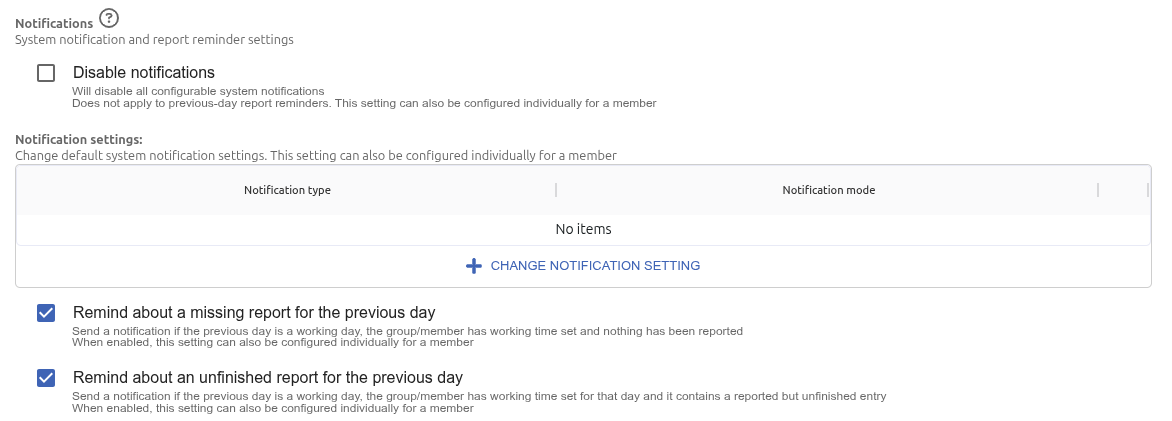
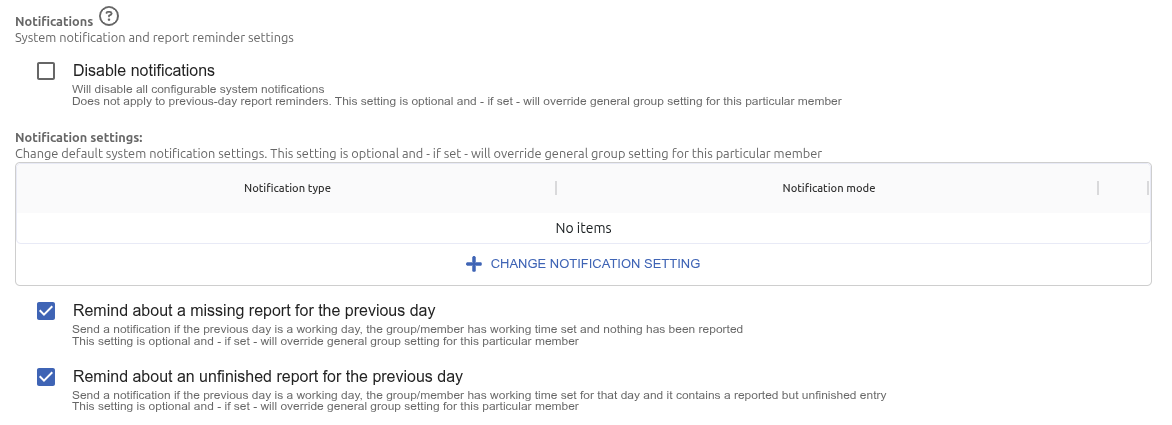
Group settings that can also be configured for an individual member show the hint "This setting can also be configured individually for a member". The previous-day report reminders show "When enabled, this setting can also be configured individually for a member" instead - the member setting only appears once the reminder is turned on for the group. In the member settings, such settings show the hint "This setting is optional and - if set - will override general group setting for this particular member".
System notifications are emails sent automatically on events in the group, e.g. an invitation accepted or rejected, a member attached to or detached from the group, a report accepted or rejected.
Member settings combine with the group settings as follows:
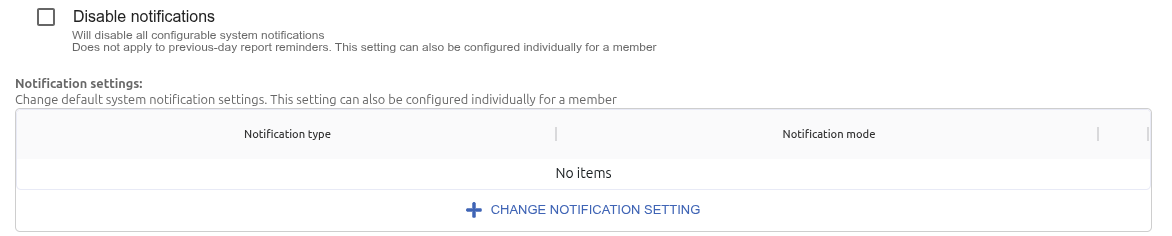
Turning off system notifications does not affect previous-day report reminders - those are turned on and off separately (see below).
Reminders help members remember to complete their report. There are two kinds of reminder, each turned on separately in the group settings:
Both reminders are off by default.

Reminders are checked every day (weekends included) on the morning of the next day and always concern the previous day - e.g. Friday's report is checked on Saturday morning.
The previous day is only considered when it was a working day for the member:

Reminders are sent to active members who can report working time in the group (the group owner and people whose role allows reporting, including by scanning QR or NFC codes). Reminders are not sent in archived groups, in inactive or read-only accounts, or to inactive users.
A reminder is sent if the member reported no entries at all on the previous day. A comment or a tag on the day alone does not count as a report.
Example: "No working hours reported for 2026-10-07"
A reminder is sent if the previous day contains an entry that has a start time (from) but no end time (to) - e.g. an activity started by scanning and never finished. Each such entry gets its own line in the email.
This reminder only works when the report columns (set for the member, or, if not set, for the group) include both a From - (HH:MM) and a To - (HH:MM) column.
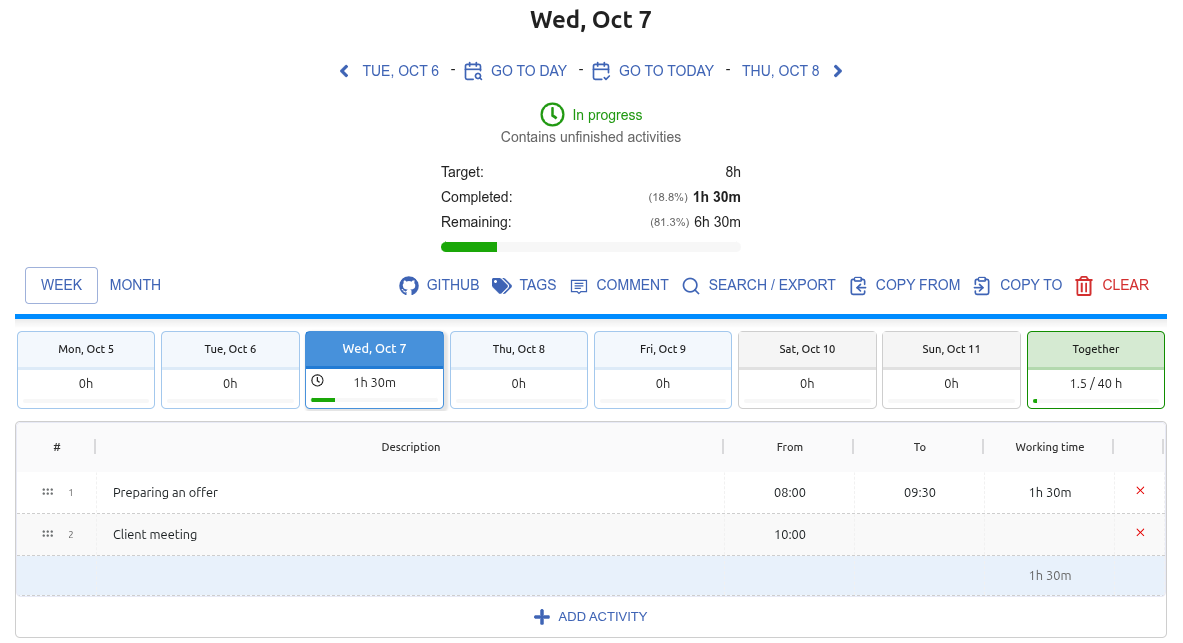
Example: "2026-10-07 contains a reported but unfinished entry Client meeting"
Each person gets one email per day covering all of their groups, with the information grouped by group name. The subject is "Reminder about your hours for YYYY-MM-DD".
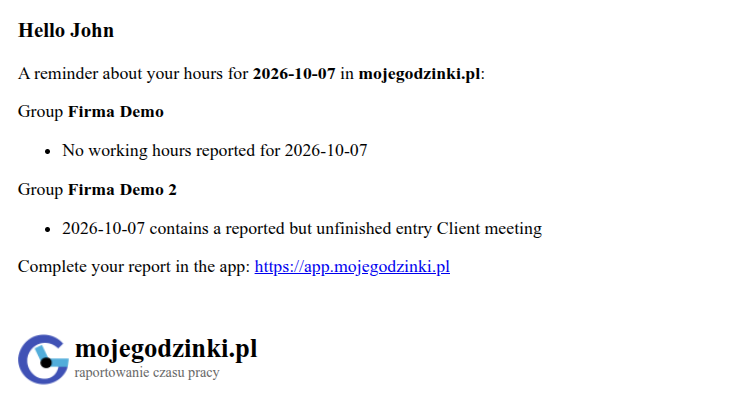
The email is sent in Polish to users using the application in Polish, and in English to everyone else.
When a reminder is turned on in the group settings, the same setting appears in the Notifications section of every member's settings - ticked, unless the reminder was turned off for that member before. Unticking it turns the reminder off for that member only.
A member setting can only turn a reminder off - it cannot turn it on for a member when it is off in the group settings. Turning it off for a member is remembered: if the reminder is later turned off for the group and then on again, that member still does not get it until the setting is ticked again for them.

When a reminder is turned off in the group settings, it is not sent to anyone and does not appear in the member settings.


